
Introduction
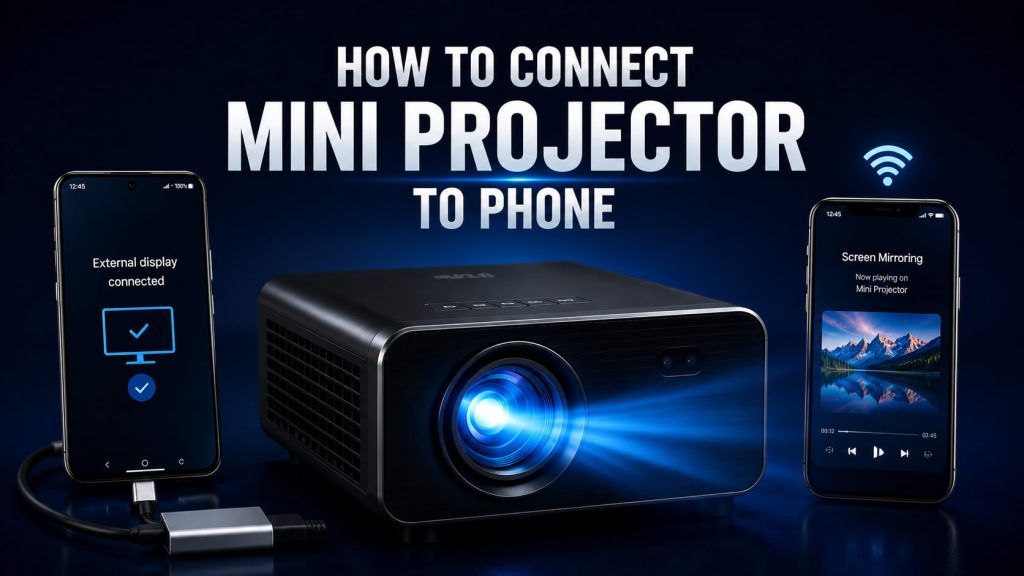
How to Connect Mini Projector to Phone is easy when you know the right setup method. Whether you’re using an Android phone or an iPhone, this guide explains wired and wireless connection methods, along with simple troubleshooting tips to help you get your projector working quickly.
However, many users often get confused about the correct connection method. Some projectors support wired connections, while others allow wireless screen mirroring. The exact steps depend on your phone type (Android or iPhone) and the features available on your projector.
In this guide, you will learn all the reliable methods to connect your phone to a mini projector easily and correctly.
Quick Answer
To connect a mini projector to a phone, you can use a wired connection (HDMI or USB-C adapter) or a wireless method such as Wi-Fi screen mirroring, AirPlay (for iPhone), or Chromecast. The method depends on your projector’s supported features and your phone type.
Things You Need Before Connecting Your Phone to a Mini Projector
Before starting the connection process, make sure you have the right equipment. This helps avoid common setup problems.
1. Compatible Mini Projector
Your projector must support at least one of the following:
- HDMI input
- USB-C input
- Wi-Fi connectivity
- Screen mirroring (Miracast / AirPlay / Chromecast)
2. Smartphone (Android or iPhone)
Both Android and iPhone devices can connect to mini projectors, but the method may vary depending on the operating system.
3. Necessary Cables or Adapters
Depending on your setup, you may need:
- HDMI cable
- USB-C to HDMI adapter (Android)
- Lightning to HDMI adapter (iPhone)
- Power cable for projector
- Wi-Fi connection (for wireless methods)
4. Stable Power Source
Ensure your projector is properly powered, especially for non-battery models.
How to Connect Android Phone to Mini Projector
Android phones offer multiple ways to connect to a mini projector. The method depends on whether your projector supports wired or wireless connections.
Method 1: Wired Connection (HDMI / USB-C)
This is the most stable and reliable method for high-quality display.
Steps:
- Connect your HDMI cable to the mini projector
- Attach the other end to a USB-C to HDMI adapter
- Plug the adapter into your Android phone
- Turn on the projector
- Select HDMI input from the projector menu
- Your phone screen will automatically mirror on the projector
Advantages:
- Stable connection
- No lag
- Better video quality
- Works without Wi-Fi
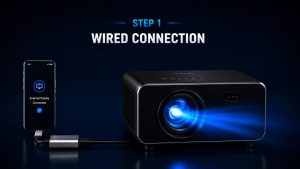
Connect an Android phone to a mini projector using a USB-C to HDMI adapter for a reliable wired connection.
Method 2: Wireless Screen Mirroring (Wi-Fi / Miracast)
If your projector supports wireless casting, you can connect without cables.
Steps:
- Connect your phone and projector to the same Wi-Fi network
- Open “Cast” or “Screen Mirroring” on your Android phone
- Select your projector from the available devices
- Wait for connection confirmation
- Your screen will be mirrored instantly
Advantages:
- No cables needed
- Easy setup
- Good for casual use
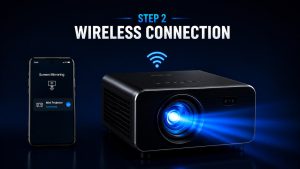
Step 2 – Wireless Wirelessly connect your smartphone to a mini projector using screen mirroring over Wi-Fi.
How Mini Projector Connects to Phone (Basic Understanding)
A mini projector receives video signals from your phone and converts them into a large projected image using its internal imaging system.
The connection works in two main ways:
- Wired signal transmission (HDMI/USB-C)
- Wireless signal transmission (Wi-Fi/Bluetooth casting)
If you want to understand what happens inside a projector when it receives a signal, check our How Projector Works guide for a detailed technical explanation.
Wireless vs Wired Connection (Quick Overview)
| Method | Stability | Quality | Convenience |
| Wired (HDMI) | Very High | High | Medium |
| Wireless (Wi-Fi) | Medium | Medium | High |
Wired connections are best for performance, while wireless connections are best for convenience.
How to Connect iPhone to a Mini Projector
iPhone users can connect a mini projector in several ways, depending on whether the projector supports wired or wireless connectivity.
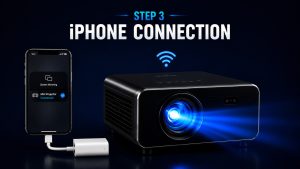
Unlike Android, Apple devices often rely on specific adapters or AirPlay-compatible systems.
Method 1: HDMI Adapter (Most Reliable Method)
This is the most stable and widely used method for iPhone users.
Steps:
- Get a Lightning to HDMI adapter
- Connect HDMI cable to the mini projector
- Connect the adapter to your iPhone
- Turn on the projector
- Select HDMI input mode
- Your iPhone screen will appear on the projector
Advantages:
- Very stable connection
- High-quality video output
- No lag or delay
- Works without Wi-Fi
Method 2: AirPlay (Wireless Method)
If your mini projector supports AirPlay, you can connect wirelessly without cables.
Steps:
- Connect iPhone and projector to the same Wi-Fi network
- Open Control Center on iPhone
- Tap “Screen Mirroring”
- Select your projector from the list
- Enter code (if required)
- Screen will mirror instantly
Advantages:
- No cables required
- Easy setup
- Clean wireless experience
Limitations:
- Requires compatible projector
- May have slight delay compared to HDMI
Method 3: Chromecast (Alternative Wireless Option)
Some mini projectors support Chromecast or external casting devices.
Steps:
- Plug Chromecast into projector HDMI port
- Connect Chromecast to Wi-Fi
- Open Google Home app on iPhone
- Start casting supported apps
Advantages:
- Good for streaming apps
- Stable Wi-Fi-based connection
- Works across multiple devices
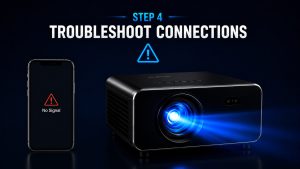
Fix common mini projector connection problems by checking the connection status, signal, and device compatibility.
Common Problems When Connecting Phone to Mini Projector
Sometimes users face connection issues. Most problems are simple and can be fixed easily.
1. Projector Not Detecting Phone
Possible Reasons:
- Wrong input source selected
- Loose cable connection
- Incompatible adapter
Solution:
- Check HDMI input mode
- Reconnect all cables properly
- Restart both devices
2. No Sound Output
Possible Reasons:
- Audio not routed properly
- Bluetooth speaker not connected
- Volume muted on device
Solution:
- Check projector audio settings
- Increase phone volume
- Connect external speaker if needed
3. Lag or Delay in Wireless Mode
Possible Reasons:
- Weak Wi-Fi signal
- Network congestion
- Low-quality casting protocol
Solution:
- Use 5GHz Wi-Fi if available
- Reduce distance between devices
- Switch to wired HDMI for better performance
4. Screen Not Displaying Properly
Possible Reasons:
- Incorrect resolution settings
- Aspect ratio mismatch
- Incompatible projection mode
Solution:
- Adjust resolution on phone
- Change aspect ratio in projector settings
- Try auto-fit or keystone correction
Best Connection Method (Quick Guide)
| Situation | Best Method |
| Stable performance needed | HDMI Cable |
| iPhone users | Lightning to HDMI |
| Wireless convenience | AirPlay |
| Streaming apps | Chromecast |
| Gaming | Wired HDMI |
Internal Understanding of Connection Process
When your phone connects to a mini projector, it sends video and audio signals in real time. The projector then processes this signal and displays it using its internal imaging system.
This is why connection quality depends on:
- Signal strength
- Cable quality
- Wireless network stability
- Projector processing speed
To understand how these signals are converted into large-screen visuals, read our How Projector Works guide.
Why Connection Methods Differ Between Devices
Different phones and projectors use different communication protocols.
- Android supports Miracast, USB-C, HDMI
- iPhone uses AirPlay, Lightning adapters, HDMI
- Smart projectors support Wi-Fi casting
That’s why choosing the right method is important for smooth performance.
If you’re still confused about projector types and features, check our What Is a Mini Projector guide for a full overview.
Best Practices for Smooth Phone to Mini Projector Connection
To get the best performance while connecting your phone to a mini projector, a few simple practices can make a big difference.
Use the Right Connection Method
Always choose the method that best fits your use case:
- HDMI for stability and gaming
- Wireless for convenience and casual viewing
- AirPlay for iPhone users
- Chromecast for streaming apps
Keep Devices Updated
Make sure your:
- Phone software is updated
- Projector firmware is updated (if available)
- Casting apps are up to date
This helps reduce compatibility issues.
Maintain Strong Wi-Fi (For Wireless Use)
If you’re using screen mirroring or AirPlay:
- Use 5GHz Wi-Fi if possible
- Keep devices close to the router
- Avoid heavy network usage during casting
Reduce Interference
Wireless signals can be affected by:
- Walls
- Other electronic devices
- Weak routers
Keep your setup simple for better performance.
Advanced Tips for Better Viewing Experience
If you want a more professional setup, consider these tips:
- Use a tripod or stable surface for projector alignment
- Adjust keystone correction for perfect image shape
- Use external speakers for better audio
- Darken the room for improved brightness and contrast
- Use a projection screen instead of a wall for sharper visuals
Frequently Asked Questions (FAQs)
Can I connect any phone to a mini projector?
Yes.
Almost all modern smartphones (Android and iPhone) can connect to mini projectors using wired or wireless methods.
Which is better: wired or wireless connection?
Wired (HDMI) connection is better for:
- Gaming
- Movies
- Stable performance
Wireless connection is better for:
- Convenience
- Casual streaming
- Quick setup
Why is my mini projector not connecting to my phone?
Common reasons include:
- Wrong input source selected
- Incompatible adapter
- Weak Wi-Fi connection
- Unsupported casting feature
Do I need internet to connect phone to projector?
Not always.
- Wired HDMI connection does NOT need internet
- Wireless methods usually require Wi-Fi
Can I play Netflix or YouTube on mini projector?
Yes.
You can stream apps using:
- Screen mirroring
- Chromecast
- Smart projector apps
- HDMI connection from phone or laptop
Conclusion
Connecting a mini projector to a phone is simple once you understand the right method for your device and projector type.
Whether you use an Android or iPhone, you can choose between wired connections for maximum stability or wireless methods for convenience and flexibility.
HDMI connections provide the best performance, while AirPlay, screen mirroring, and Chromecast offer easy wireless streaming options.
By following the correct steps and troubleshooting common issues, you can enjoy a smooth and high-quality big-screen experience from your smartphone anytime, anywhere.