
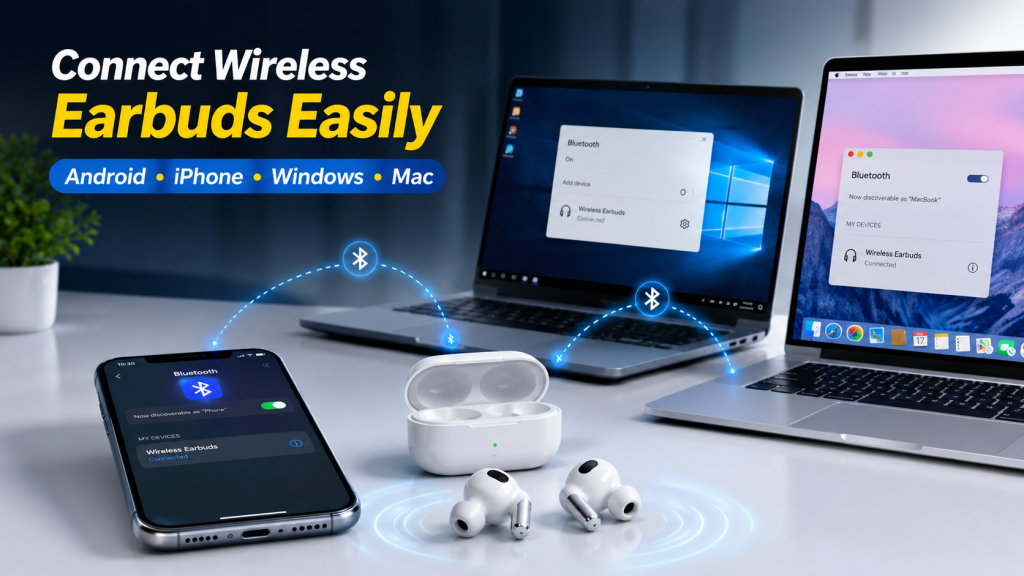
Wireless earbuds have made it easier than ever to enjoy music, watch videos, attend virtual meetings, and take calls without dealing with tangled cables. While most modern earbuds are designed for quick pairing, many users still struggle with the initial setup or experience connection issues. If you’re wondering how to connect wireless earbuds, you’ve come to the right place.
Whether you’re using an Android phone, an iPhone, a Windows PC, or a Mac, the pairing process is usually straightforward. This guide walks you through every step, explains common connection problems, and shares helpful tips to keep your earbuds connected reliably.
How to Connect Wireless Earbuds Before You Start
Before pairing your earbuds with any device, take a few minutes to prepare them. Doing so can help avoid many common connection problems.
Start by charging both the earbuds and the charging case. A low battery may prevent the earbuds from entering pairing mode. Next, remove both earbuds from the charging case. Most true wireless earbuds automatically power on when removed.
If you’ve connected the earbuds to another device before, disconnect or forget them from that device’s Bluetooth settings. Some earbuds automatically reconnect to the last paired device, making it difficult to pair with a new one.
Finally, make sure Bluetooth is turned on for the device you want to connect.
Connect to an Android Phone
Android devices support Bluetooth pairing with nearly all wireless earbuds, regardless of brand.
Open the Settings app on your Android phone and tap Bluetooth or Connected Devices, depending on your device model. Turn Bluetooth on if it isn’t already enabled.
Place your earbuds into pairing mode. Most earbuds enter pairing mode automatically the first time they’re powered on. If they don’t, press and hold the touch sensor or pairing button according to the manufacturer’s instructions.
After a few seconds, your earbuds should appear in the list of available devices. Tap their name to begin pairing. Once connected, you’ll see a confirmation message, and your earbuds will be ready to use.
Some Android brands also support features like Fast Pair, making the process even quicker.
Connect to a Windows PC
Pairing wireless earbuds with an iPhone is simple and usually takes less than a minute.
Open Settings, then tap Bluetooth and switch Bluetooth on.
Place your earbuds into pairing mode and wait for them to appear under Other Devices. Tap the name of your earbuds to complete the connection.
Once paired successfully, the earbuds will move to the My Devices section. Future connections happen automatically whenever Bluetooth is enabled and the earbuds are nearby.
If you’re using Apple AirPods, simply open the charging case near your unlocked iPhone and follow the on-screen setup instructions.
How to Connect Wireless Earbuds to a Windows PC
Wireless earbuds work well with Windows laptops and desktop computers that support Bluetooth.
Open the Settings menu and select Bluetooth & Devices. Turn Bluetooth on if necessary.
Click Add Device, then choose Bluetooth. Place your earbuds into pairing mode and wait for Windows to detect them.
When the earbud name appears, select it to complete pairing. After the connection finishes, choose the earbuds as your default audio output if sound doesn’t switch automatically.
If your computer doesn’t have built-in Bluetooth, you can use a USB Bluetooth adapter.
How to Connect Wireless Earbuds to a Mac
Connecting earbuds to a Mac is just as easy.
Click the Apple menu, then open System Settings or System Preferences, depending on your macOS version.
Select Bluetooth and ensure it is enabled.
Put your earbuds into pairing mode and wait for them to appear in the available devices list. Click Connect next to the earbud name.
Once connected, your Mac will remember the earbuds and reconnect automatically whenever they’re nearby.
How to Put Wireless Earbuds into Pairing Mode
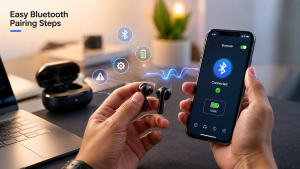
Pairing mode allows nearby devices to discover your earbuds.
Although each manufacturer uses a slightly different method, common options include:
- Removing both earbuds from the charging case.
- Pressing and holding the touch controls for several seconds.
- Holding the pairing button on the charging case.
- Resetting the earbuds if they were previously connected elsewhere.
If you’re unsure, check your earbud’s user manual for the exact pairing instructions.
Common Problems When Learning How to Connect
Sometimes your earbuds won’t appear in the Bluetooth list or fail to connect properly.
One common reason is that they’re still connected to another phone, tablet, or computer nearby. Disconnect them from the previous device before trying again.
Another issue is low battery power. Recharge both earbuds and the charging case before troubleshooting further.
Software glitches can also interrupt pairing. Turning Bluetooth off and back on or restarting your device often resolves temporary issues.
If nothing works, resetting the earbuds to factory settings usually restores normal pairing.
How to Fix Wireless Earbuds That Won’t Connect
If you’re still having trouble, try these simple solutions.
First, forget the earbuds from your Bluetooth settings and reconnect them as a new device.
Restart both the earbuds and the device you’re connecting to.
Move closer to your device, as Bluetooth works best within about 10 meters (33 feet) without major obstacles.
Update your phone or computer to the latest software version, as Bluetooth improvements are often included in system updates.
Finally, install your earbud manufacturer’s companion app if available. Many brands provide firmware updates that improve connection stability.
Tips for Keeping Wireless Earbuds Connected
Once your earbuds are paired, a few good habits can help maintain a reliable connection.
Keep your earbuds charged regularly, since low battery can weaken Bluetooth performance.
Avoid using your earbuds too far away from your device. Walls, furniture, and other wireless signals can reduce connection quality.
Store your earbuds in their charging case when not in use to protect them from dust and accidental damage.
Install firmware updates whenever your manufacturer releases them, as updates often improve pairing speed and connection reliability.
Cleaning the charging contacts and speaker mesh regularly also helps maintain overall performance.
Wireless Earbuds to Multiple Devices?
Many newer earbuds support multipoint Bluetooth, allowing them to stay connected to two devices simultaneously.
For example, you can listen to music on your laptop while remaining connected to your smartphone for incoming calls.
If your earbuds don’t support multipoint, you’ll need to disconnect them from one device before pairing them with another.
Check your manufacturer’s specifications to see whether your earbuds offer this feature.
Frequently Asked Questions
Why won’t my wireless earbuds connect?
The most common reasons include low battery, Bluetooth being turned off, the earbuds already being connected to another device, or the earbuds not being in pairing mode.
Can I connect wireless earbuds to both Android and iPhone?
Yes. Most Bluetooth earbuds are compatible with Android phones, iPhones, Windows computers, Macs, tablets, and smart TVs.
Do I need an app to connect wireless earbuds?
No. Most earbuds connect directly through your device’s Bluetooth settings. However, some brands offer companion apps for firmware updates and additional features.
Why do my earbuds keep disconnecting?
Frequent disconnections may be caused by low battery, Bluetooth interference, outdated firmware, or being too far from the connected device.
How far do wireless earbuds work?
Most Bluetooth earbuds provide a stable connection within approximately 10 meters (33 feet), although walls and obstacles may reduce this range.
Final Thoughts
Learning how to connect wireless earbuds is easier than many people expect. Whether you’re pairing them with an Android phone, an iPhone, a Windows PC, or a Mac, the process usually takes only a few minutes. By charging your earbuds, enabling Bluetooth, using the correct pairing mode, and following a few troubleshooting steps when needed, you can enjoy a stable and hassle-free wireless listening experience. With regular updates, proper maintenance, and good connection habits, your wireless earbuds will continue delivering reliable performance wherever you go.