
Table of Contents
ToggleIntroduction
Electronic devices are part of our daily lives. We use smartphones, laptops, televisions, tablets, gaming consoles, keyboards, and smart home devices for work, education, and entertainment. Over time, these devices collect dust, fingerprints, dirt, and bacteria that can affect both their appearance and performance.
Learning how to clean electronics properly helps extend the lifespan of your devices, improve their efficiency, and maintain better hygiene. However, using the wrong cleaning products or methods can damage screens, keyboards, ports, and internal components.
This comprehensive guide explains the safest ways to clean electronic devices, the tools you’ll need, common mistakes to avoid, and maintenance tips to keep your electronics looking and performing like new.
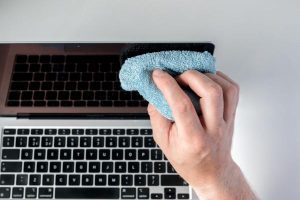
Why Cleaning Electronics Is Important
Regular cleaning provides several benefits:
- Removes dust and dirt
- Reduces bacteria and germs
- Improves device appearance
- Prevents overheating
- Extends device lifespan
- Improves keyboard and button performance
- Maintains screen clarity
Even a few minutes of cleaning each week can help preserve your electronics.
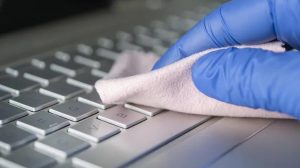
Supplies You’ll Need
Before cleaning, gather these items:
- Microfiber cloth
- Soft brush
- Compressed air (if appropriate)
- Cotton swabs
- Screen-safe cleaning solution
- Distilled water (if recommended by the manufacturer)
Avoid using
- Bleach
- Abrasive cleaners
- Paper towels that may scratch delicate surfaces
- Excessive amounts of liquid
General Safety Rules Before Cleaning
Always follow these steps:
- Turn off the device.
- Unplug it from power.
- Remove batteries if possible (for applicable devices).
- Allow hot devices to cool.
- Never spray liquid directly onto electronics unless the manufacturer specifically recommends it.
Safety should always come first.
How to Clean Smartphone Screens
Smartphones collect fingerprints and bacteria throughout the day.
Steps
- Turn off the phone.
- Use a dry microfiber cloth to remove fingerprints.
- If necessary, lightly dampen the cloth with a screen-safe cleaner.
- Wipe gently using circular motions.
- Dry the screen with another clean microfiber cloth.
Avoid pressing hard on the display.
How to Clean Laptop Screens
Laptop displays require careful handling.
Cleaning Process
- Turn off the laptop.
- Disconnect the charger.
- Use a microfiber cloth to remove dust.
- Lightly dampen the cloth if needed.
- Wipe gently from top to bottom.
Never pour liquid directly onto the screen.
How to Clean a Keyboard
Dust and crumbs often accumulate between keys.
Method
- Turn the keyboard upside down and gently shake loose debris.
- Use compressed air to remove particles if appropriate.
- Wipe keys with a microfiber cloth.
- Use cotton swabs for tight spaces.
Mechanical keyboards may require additional cleaning depending on the design.
How to Clean a Computer Mouse
The mouse is one of the most frequently touched devices.
Steps
- Turn it off if applicable.
- Wipe the surface with a microfiber cloth.
- Clean around buttons carefully.
- Remove dirt from the sensor area gently.
A clean sensor can improve tracking performance.
How to Clean a TV Screen
Television screens have delicate coatings.
Best Practice
- Turn off the TV.
- Let it cool.
- Use a microfiber cloth to remove dust.
- For stubborn marks, use a screen-safe cleaner applied to the cloth—not directly to the screen.
Avoid excessive pressure.
How to Clean Headphones and Earbuds
These devices come into direct contact with your skin and ears.
Cleaning Tips
- Remove detachable ear tips if applicable.
- Wipe surfaces with a soft cloth.
- Clean speaker meshes carefully using a soft brush.
- Allow everything to dry before use.
Avoid inserting sharp objects into speaker openings.
How to Clean Charging Ports
Dust inside charging ports may interfere with charging.
Safe Method
- Turn off the device.
- Use a soft brush or compressed air if appropriate.
- Avoid using metal objects that could damage connectors.
If charging problems persist, seek professional service.
How to Clean Gaming Consoles
Gaming systems require adequate airflow.
Maintenance
- Dust exterior surfaces regularly.
- Keep ventilation openings clear.
- Clean around ports gently.
- Ensure the console has enough space for airflow.
Blocked vents can contribute to overheating.
How to Clean Remote Controls
Remote controls are handled frequently and should be cleaned regularly.
Steps
- Remove batteries if possible.
- Wipe with a microfiber cloth.
- Clean around buttons with cotton swabs.
- Allow to dry completely before reinstalling batteries.
How Often Should You Clean Electronics?
Recommended schedule:
| Device | Suggested Cleaning |
|---|---|
| Smartphone | Daily wipe; deeper clean weekly |
| Laptop screen | Weekly |
| Keyboard | Weekly |
| Mouse | Weekly |
| TV | Every 2–4 weeks |
| Gaming console | Monthly exterior dusting |
| Headphones | Weekly or after heavy use |
The ideal frequency depends on your environment and usage.
Common Mistakes to Avoid
Do not:
- Spray liquid directly onto devices
- Use harsh chemicals
- Clean while devices are powered on
- Use excessive force
- Allow moisture into ports or openings
- Ignore dust buildup around vents
These mistakes can shorten the life of your electronics.
Tips to Keep Electronics Cleaner
You can reduce dirt buildup by:
- Washing your hands before use
- Keeping food away from electronics
- Using protective cases
- Storing devices in clean, dry places
- Dusting your workspace regularly
Prevention reduces the need for intensive cleaning.
Benefits of Regular Cleaning
Keeping electronics clean can:
- Improve appearance
- Support better cooling
- Enhance user experience
- Reduce wear on buttons and ports
- Promote better hygiene
- Extend device lifespan
Routine maintenance is easier than dealing with preventable problems.
Frequently Asked Questions
Can I use water to clean electronics?
Small amounts of moisture on a microfiber cloth may be appropriate for some devices, but avoid excessive liquid and always follow the manufacturer’s cleaning recommendations.
Is alcohol safe for cleaning electronics?
Some manufacturers allow certain alcohol-based cleaning solutions for exterior surfaces, while others recommend different products. Always follow the guidance for your specific device.
Can dust damage electronics?
Yes. Heavy dust accumulation can block airflow and contribute to overheating, particularly in computers and gaming consoles.
How often should I clean my laptop?
A weekly exterior cleaning and periodic removal of dust around vents is a practical routine for many users.
Should I clean electronics while they are plugged in?
No. Turn off and disconnect the device from power before cleaning whenever possible.
Conclusion
Knowing how to clean electronics is an essential part of protecting your investment and maintaining reliable performance. Using the right tools, avoiding harsh chemicals, keeping devices dry, and cleaning them on a regular schedule can help extend their lifespan and keep them looking their best.
By following safe cleaning practices and performing routine maintenance, you can reduce dust buildup, improve hygiene, and enjoy better performance from your electronic devices for years to come.