
Wireless earbuds are simple once you understand them—but the first connection can feel confusing if you’ve never done it before. Buttons, blinking lights, Bluetooth lists… it can look more complicated than it really is. The truth is, learning how to connect wireless earbuds takes only a few minutes when you follow the right steps.
This guide breaks everything down in a natural, real-world way so you can connect any wireless earbuds to your phone, laptop, or tablet without stress.
Table of Contents
ToggleWhat Is Actually Happening When You Connect Earbuds?
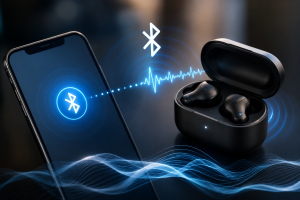
Before going into steps, it helps to know what’s going on behind the scenes.
Wireless earbuds use Bluetooth, a short-range wireless signal. When you connect them:
- Your phone searches for nearby devices
- Earbuds send a signal saying “I’m here”
- Both devices create a secure connection
- Audio starts playing through the earbuds instead of speakers
After the first setup, they usually remember each other and connect automatically.
Step 1: How to Connect Wireless Earbuds: Charge Them First
A lot of connection problems happen because people skip this step.
Before anything else:
- Place earbuds inside the charging case
- Charge them for at least 20–30 minutes
- Make sure the case also has battery
Why this matters:
- Low battery can block pairing
- One earbud may not respond
- Connection may drop instantly
A stable charge = smooth connection.
Step 2: Enable Bluetooth Before Connecting Wireless Earbuds
Now go to your phone or device.
Follow this simple path:
- Open Settings
- Tap Bluetooth
- Switch it ON
Your device will now start scanning for nearby devices automatically.
Keep your earbuds close to your phone during this process for faster detection.
Step 3: Put Your Earbuds into Pairing Mode
This is the most important step in how to connect wireless earbuds correctly.
There are two common ways:
Automatic Pairing (Most modern earbuds)
- Take earbuds out of the case
- They turn on automatically
- A blinking light appears
Manual Pairing (If they don’t auto-connect)
- Press and hold the touch area or button
- Hold for 5–10 seconds
- Wait for flashing light (blue/white/red depending on model)
That blinking light means:
👉 “I am ready to connect.”
Step 4: Find the Earbuds on Your Phone
Now look at your Bluetooth list.
You’ll see something like:
- Brand name (e.g., “Galaxy Buds,” “Redmi Buds”)
- Or generic name like “TWS Earbuds”
Tap the name of your earbuds.
Then wait a few seconds while your phone connects.
Step 5: Confirm the Connection
Once connected, you’ll notice:
- A “Connected” message on screen
- A sound or voice prompt in earbuds
- Blinking light stops or becomes stable
At this point, your earbuds are fully ready to use.
Try playing music or a video to confirm everything is working.
Step 6: First-Time Sound Test
Always test before assuming everything is perfect.
Try:
- Playing a song
- Watching a YouTube video
- Making a call
Check:
- Sound from both earbuds
- Clear audio (no lag or distortion)
- Stable connection
If everything works, setup is complete.
Step 7: Automatic Connection After First Pairing
Here’s the good part.
After the first successful setup:
- You don’t need to repeat steps
- Just open the case
- Earbuds connect automatically
This is why wireless earbuds feel so convenient after the first use.
Step 8: Connecting to a New Device
If you want to switch devices (like phone to laptop):
Step 1:
Disconnect from current device:
- Turn off Bluetooth OR
- “Forget device” from settings
Step 2:
Repeat pairing process:
- Put earbuds in pairing mode
- Search on new device
- Tap to connect
Most earbuds can only connect to one device at a time unless they support multi-device mode.
Step 9: Fixing Common Connection Problems
Even good earbuds sometimes act up. Here’s how to fix it quickly.
Problem: Earbuds not showing in Bluetooth list
Fix:
- Turn Bluetooth OFF/ON
- Reset earbuds
- Re-enter pairing mode
Problem: Only one earbud connects
Fix:
- Put both earbuds back in case
- Reset them
- Pair again as a set
Problem: Connection keeps disconnecting
Fix:
- Stay within 10 meters
- Avoid walls or heavy interference
- Restart phone and earbuds
Problem: Connected but no sound
Fix:
- Check volume
- Select earbuds as audio output
- Reconnect Bluetooth
Step 10: Pro Tips for Smooth Connection Every Time
If you want zero frustration in daily use:
- Keep earbuds charged
- Store them in case when not using
- Don’t connect too many devices at once
- Restart Bluetooth occasionally
- Update firmware if your brand has an app
These small habits make a big difference.
Why Earbuds Sometimes Fail to Connect
It’s not random—there are real reasons:
- Battery too low
- Earbuds already connected to another device
- Bluetooth cache glitches
- Too much wireless interference
- Pairing mode not activated properly
Once you understand this, fixing them becomes easy.
FAQ: How to Connect Wireless Earbuds
1. Why won’t my wireless earbuds connect?
Most of the time, Bluetooth is off, earbuds are not in pairing mode, or battery is too low. Resetting usually fixes it.
2. Do wireless earbuds connect automatically?
Yes. After the first pairing, they usually reconnect automatically when you open the case and turn on Bluetooth.
3. Why is only one earbud connecting?
This happens due to sync issues. Reset both earbuds and pair them again together.
4. Can I connect earbuds to laptop and phone at the same time?
Most earbuds cannot connect to two devices at once unless they support multi-device Bluetooth.
5. How do I reset wireless earbuds?
Usually, hold both touch buttons for 10–15 seconds until the light flashes, then re-pair them.
Final Thoughts
Learning how to connect wireless earbuds is not difficult—it just feels that way at first. Once you understand charging, pairing mode, Bluetooth settings, and device selection, everything becomes very simple.
After the first successful connection, earbuds become almost automatic. You open the case, they connect, and you start using them instantly.
With the right setup, wireless earbuds turn into one of the easiest and most reliable tech gadgets in your daily life—perfect for music, calls, travel, and entertainment.