
If you’re wondering how to pair wireless earbuds, you’re not alone. Wireless earbuds make listening to music, taking calls, and watching videos more convenient than ever, but connecting a new pair for the first time can sometimes be frustrating. Maybe your earbuds aren’t showing up in Bluetooth settings, one earbud won’t connect, or you’re unsure how to connect them to a phone, laptop, or tablet.
The good news is that pairing wireless earbuds is usually quick and simple once you understand the process. Most models follow the same basic Bluetooth connection method, regardless of the brand. Whether you’re using an Android phone, iPhone, Windows PC, MacBook, or tablet, the steps are very similar.
In this guide, you’ll learn exactly how to pair wireless earbuds for the first time, reconnect them to previously paired devices, switch between devices, and troubleshoot common connection issues. By the end, you’ll be able to connect your earbuds confidently and enjoy a smooth wireless audio experience.
Understanding How Wireless Earbud Pairing Works
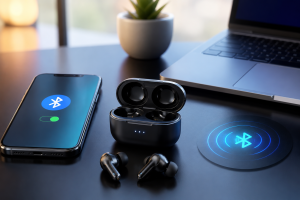
Before jumping into the steps, it helps to understand what’s happening behind the scenes.
Wireless earbuds use Bluetooth technology to communicate with your device. During the pairing process, the earbuds and your phone, computer, or tablet exchange information and create a trusted connection. Once paired successfully, both devices remember each other.
This means you won’t have to repeat the entire setup process every time you use the earbuds. In most cases, they reconnect automatically when removed from the charging case.
Before You Pair Your Wireless Earbuds
Taking a minute to prepare can prevent many common pairing problems.
Make sure:
- The earbuds have enough battery power.
- Bluetooth is enabled on your device.
- The earbuds are close to the device.
- They aren’t actively connected to another phone or computer.
- Any protective stickers on charging contacts have been removed.
Many first-time pairing issues happen simply because the earbuds are low on battery or still connected to a previously paired device.
How to Pair Wireless Earbuds with an Android Phone
If you’re using an Android device, follow these steps:
Step 1: Turn On Your Wireless Earbuds
Take the earbuds out of the charging case. Most modern earbuds automatically power on when removed.
Step 2: Put Wireless Earbuds in Pairing Mode
New earbuds usually enter pairing mode automatically. If they don’t, press and hold the pairing button until the indicator light starts blinking.
A flashing blue or white light typically means the earbuds are ready to connect.
Step 3: Wireless Earbuds Through Bluetooth Settings
On your Android phone:
- Open Settings.
- Tap Bluetooth or Connected Devices.
- Turn Bluetooth on.
Step 4: Select Your Earbuds
Wait a few seconds for your earbuds to appear in the list of available devices.
Tap the name of the earbuds.
Step 5: Confirm Connection
After a successful connection, the status will change to Connected, and many earbuds will play a confirmation sound.
Your earbuds are now ready to use.
How to Pair Wireless Earbuds with an iPhone
Apple devices make Bluetooth pairing extremely straightforward.
Step 1: Put the Earbuds in Pairing Mode
Power on the earbuds and ensure they’re discoverable.
Step 2: Open Bluetooth Settings
Go to:
Settings → Bluetooth
Turn Bluetooth on if necessary.
Step 3: Find Your Earbuds
Under Other Devices, you’ll see your earbuds appear.
Tap the device name.
Step 4: Finish Pairing
Within seconds, the earbuds should connect successfully.
Some premium earbuds may also display a pop-up pairing animation for faster setup.
How to Pair Wireless Earbuds with a Windows Laptop
Wireless earbuds are excellent for online meetings, gaming, and video streaming.
Connect to Windows
- Open Settings.
- Select Bluetooth & Devices.
- Enable Bluetooth.
- Click Add Device.
- Choose Bluetooth.
- Select your earbuds.
After pairing, Windows will remember the connection for future use.
Why Are My Wireless Earbuds Not Pairing?
If your earbuds won’t connect, you’re not alone. This is one of the most common Bluetooth issues.
Here are the most likely causes:
The Earbuds Are Already Connected Elsewhere
Many earbuds automatically reconnect to previously paired devices.
Try disabling Bluetooth on nearby devices.
Bluetooth Needs a Reset
Turn Bluetooth off and back on.
This simple step solves many connection problems.
The Earbuds Need to Be Reset
A factory reset clears stored pairing information and often restores normal operation.
One Earbud Isn’t Syncing
Sometimes the left and right earbuds lose communication with each other.
Placing both earbuds back in the charging case and resetting them usually fixes the issue.
Battery Level Is Too Low
Low battery power can prevent earbuds from entering pairing mode.
Charge them for at least 15–20 minutes before trying again.
Frequently Asked Questions
How do I put my wireless earbuds into pairing mode?
Most earbuds enter pairing mode automatically the first time they’re powered on. If not, press and hold the power or pairing button until the LED light flashes.
Why can’t my phone find my earbuds?
This usually happens because the earbuds aren’t in pairing mode, Bluetooth is disabled, or the earbuds are connected to another device.
Do I need to pair my earbuds every time?
No. After the initial pairing process, your earbuds should reconnect automatically whenever Bluetooth is enabled.
Can I connect wireless earbuds to multiple devices?
Many newer earbuds support multipoint connectivity, allowing them to stay connected to two devices simultaneously.
Final Thoughts
Knowing how to pair wireless earbuds can save a lot of frustration and help you get the most from your device. Whether you’re connecting to an Android phone, iPhone, laptop, or tablet, the process is generally quick and easy. Most pairing problems can be solved by ensuring the earbuds are charged, entering pairing mode correctly, and resetting the connection if necessary.
Once connected, you’ll enjoy the convenience of wireless audio for music, calls, gaming, workouts, and everyday use without dealing with tangled cables.